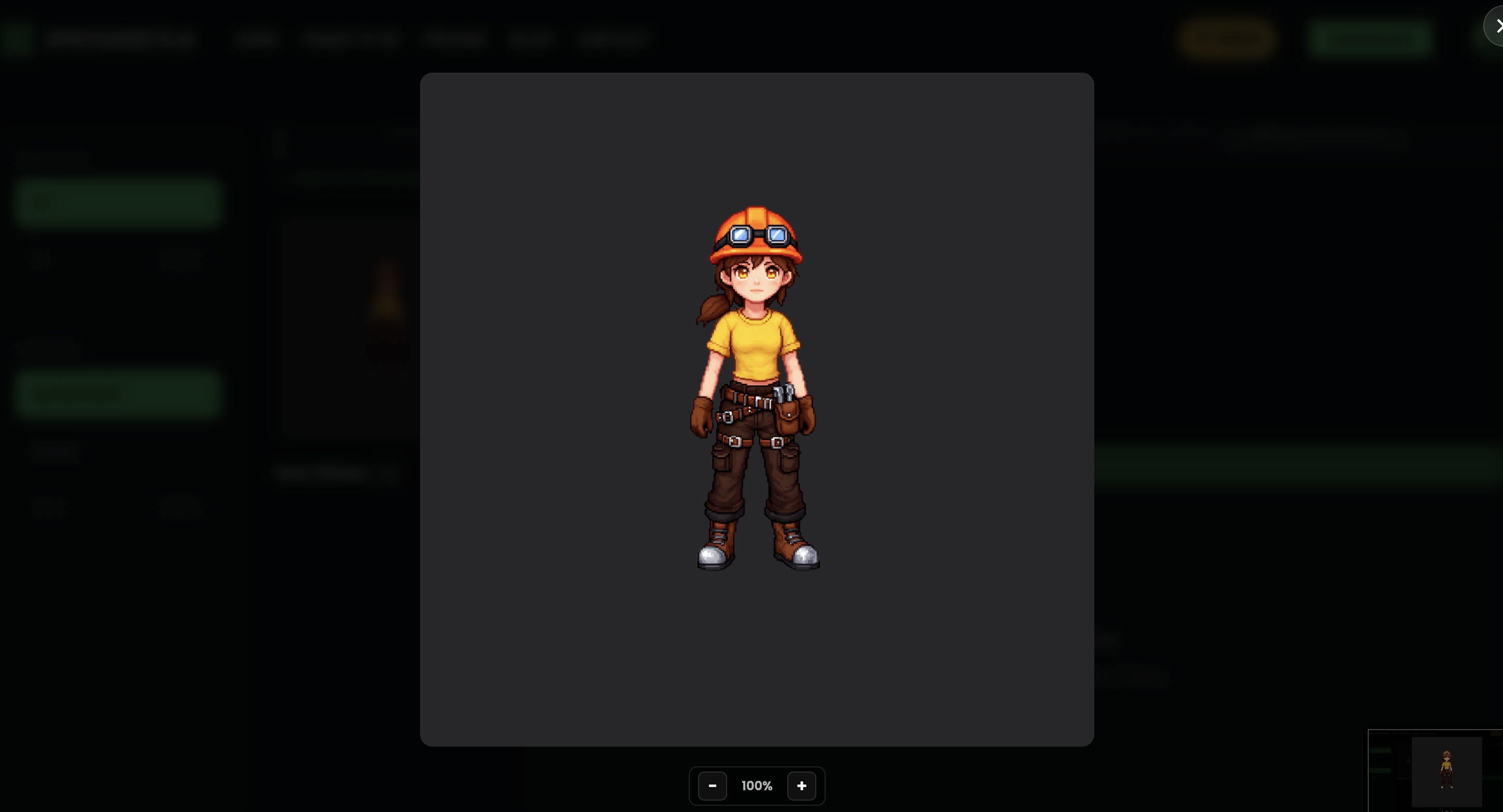
Create a Character
Characters are the foundation of your game animations. With Spritesheets.ai you can generate fully custom characters in any art style from a text prompt and a reference image, or let the AI surprise you with a random character — all in a few clicks.
Getting Started from the Dashboard
Navigate to your dashboard to begin. You have two starting options: click "Generate" to describe a specific character, or click "Roll the Dice" to let the AI engine create a random character for you.
Rolling the dice is a great way to explore styles and get inspiration when you don't have a specific concept in mind.
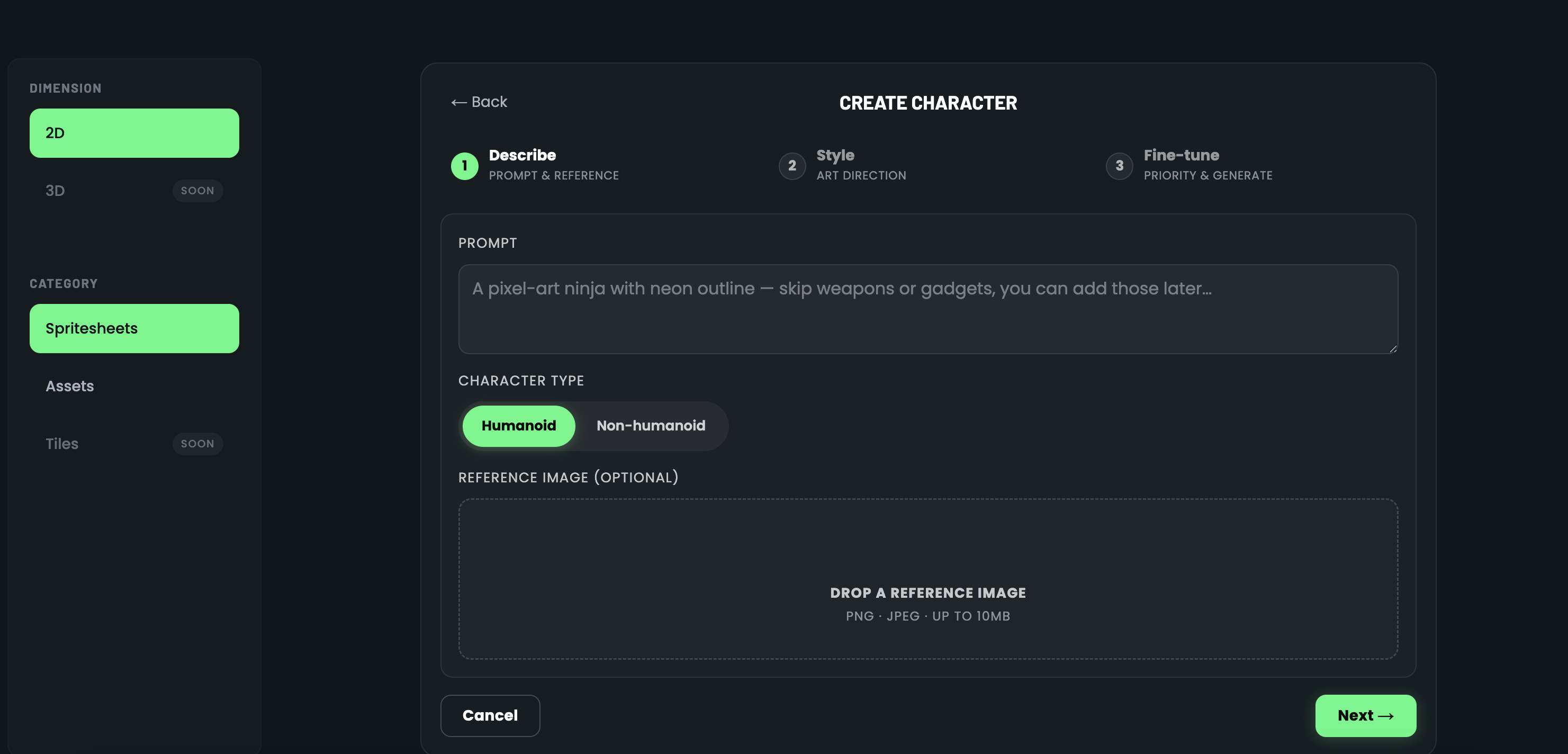
Step 1 — Describe Your Character
Write a text prompt describing the character you want to create. Be as detailed as you like — mention the character's appearance, outfit, weapons, colour palette, or any specific traits.
You can also upload a reference image to guide the AI. The reference can be concept art, a sketch, or even a photo — the engine will use it as a visual anchor for generation.
Choose whether your character is humanoid (bipedal, human-shaped) or non-humanoid. Non-humanoid covers anything from spaceships to mushrooms, animals, or abstract creatures.
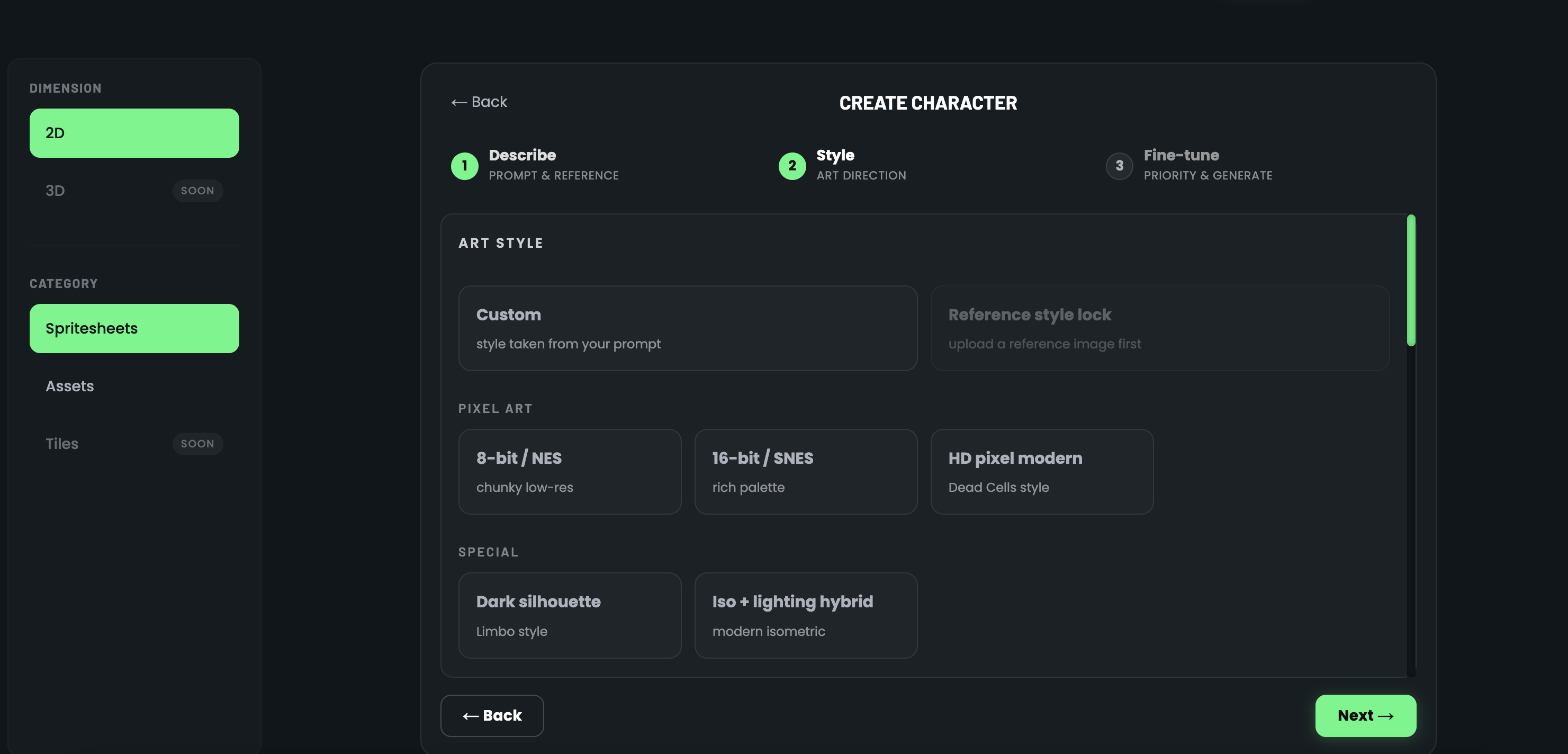
Step 2 — Choose an Art Style
Pick from a curated library of art styles that define the visual direction of your character sprite. Styles range from classic retro pixel art to high-definition modern pixel art, and each produces a distinct look.
If you uploaded a reference image, you have two special options: "Use Same Image" locks the output to closely match your reference, while selecting a different art style re-interprets your reference in that new visual direction.
Step 3 — Fine-Tune and Generate
In the final step you set the generation priority. This controls how the AI engine balances your prompt, reference image, and art style. You can lean more towards the prompt, more towards the reference, or keep a balance between the two.
Review the summary — prompt, character type, style, and reference — then hit Generate. Your character will be ready in seconds and appear in your character library.
Using a Reference Image
Upload any image as a reference to guide the AI. You can use concept art, a sketch, a photo, or an existing sprite — the engine adapts to whatever you provide.
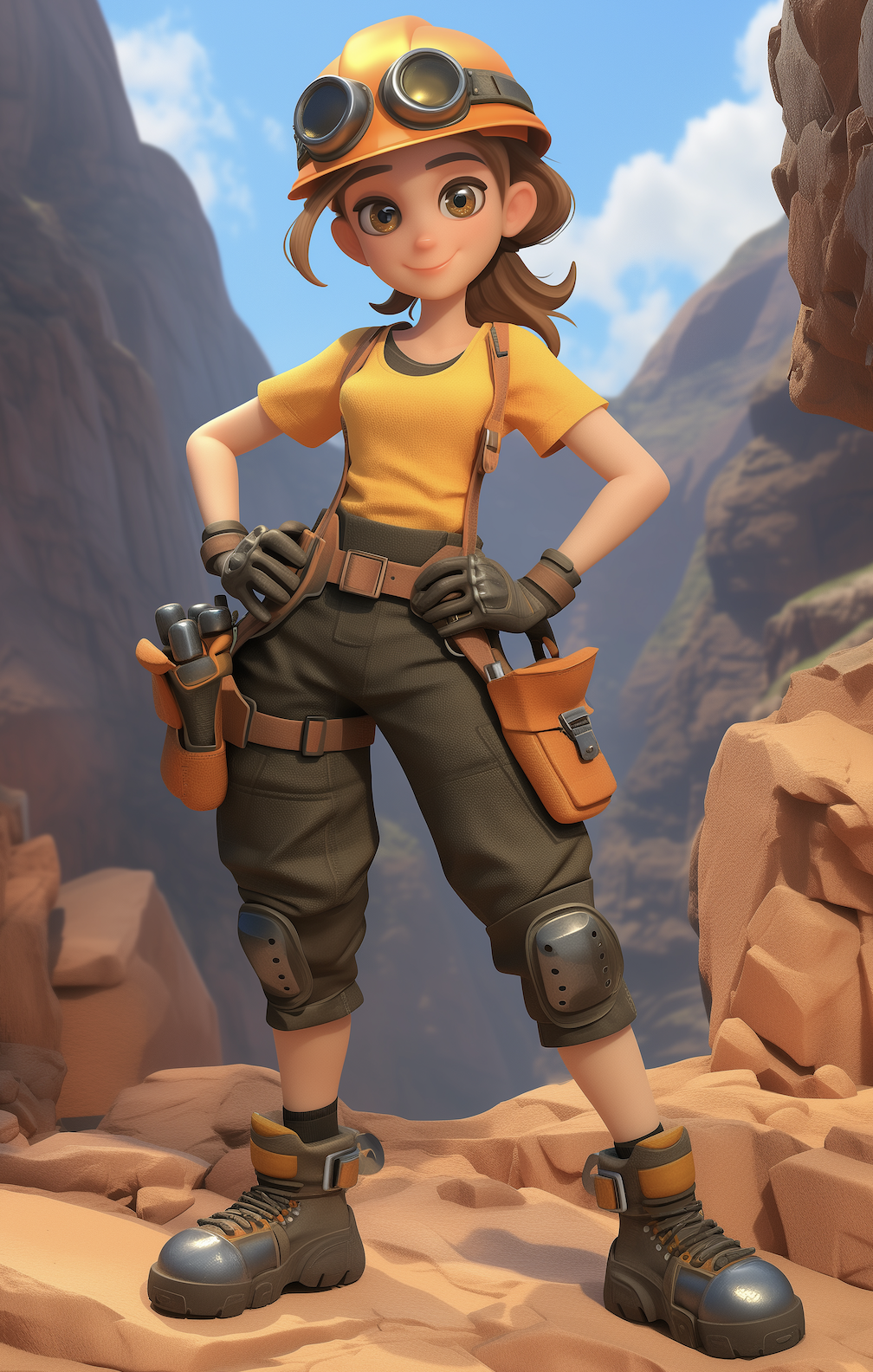
Use Same Image Output
When you select "Use Same Image", the AI keeps the output as close to your reference as possible. This is perfect when you already have a character design and just want to bring it into the platform for animation.
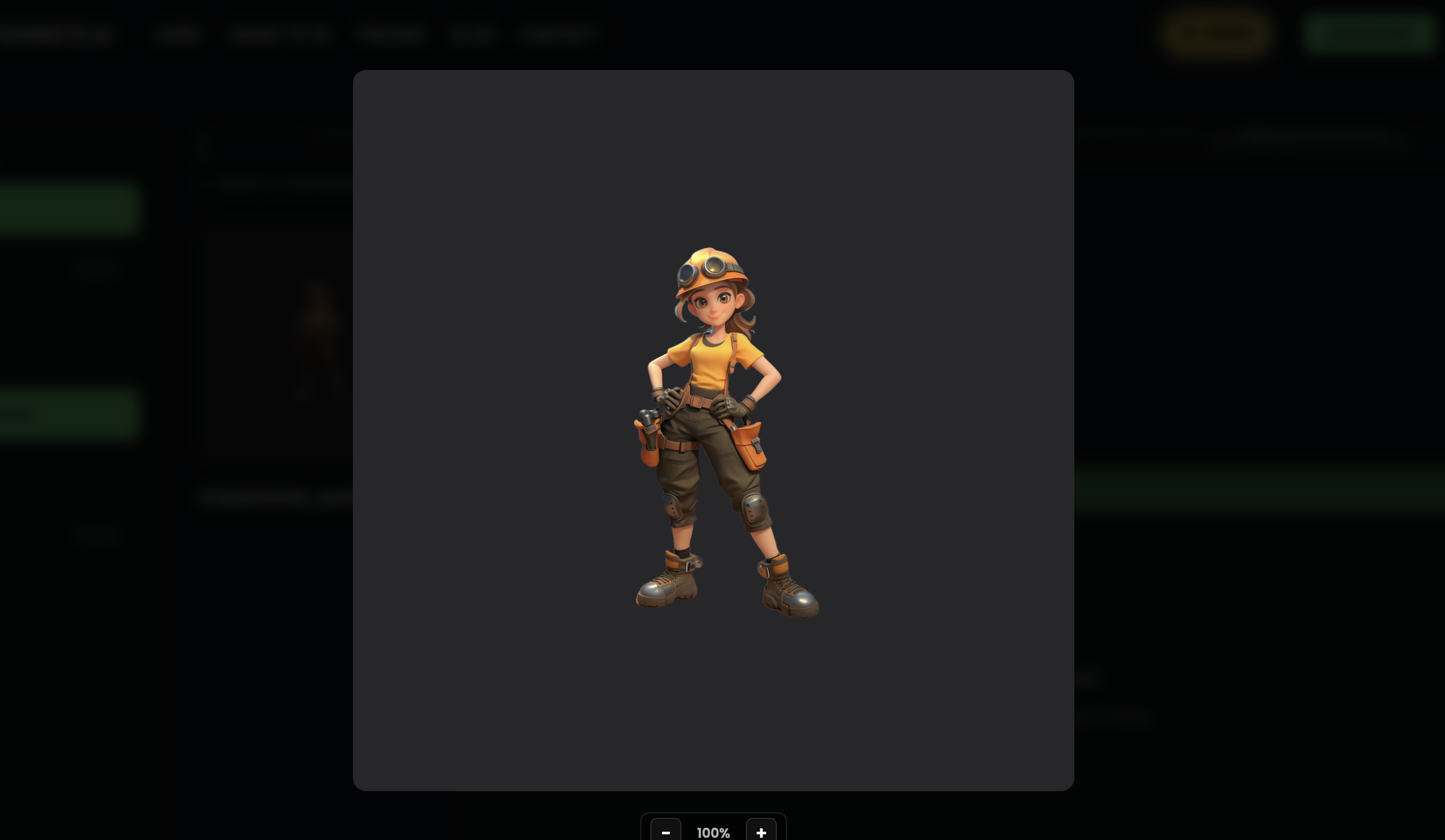
Convert to a Different Art Style
Already have a character you like? You can take any existing character and convert it to a completely different art style without starting from scratch. Pick a new art style and the engine re-imagines your character in that visual direction while keeping the core design intact.