Create and Edit Spritesheets
This is the core of Spritesheets.ai — take any character you've previously generated and animate it into a production-ready spritesheet. With full control over animation type, camera angle, and export format, you can go from a static character to a complete animation in seconds.
Video Tutorial
Starting an Animation
Select a character from your library and click "Animate" to open the spritesheet generator. You'll see your character along with the animation controls.
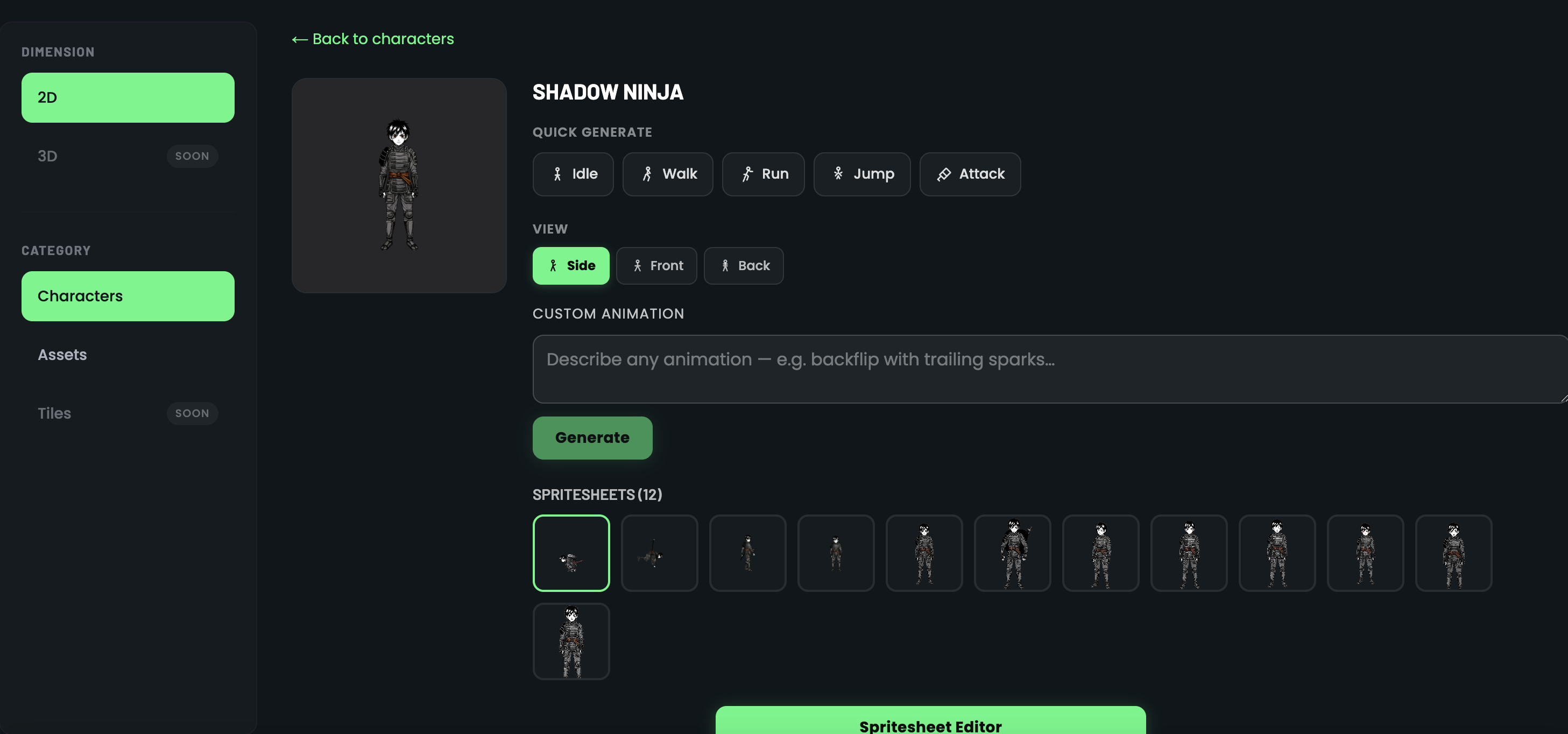
You have three ways to define the animation: pick a quick action (walk, run, idle, attack, etc.), write a custom animation prompt for unique movements, or adjust the camera angle for side-view, top-down, or isometric perspectives.
Quick Actions vs. Custom Prompts
Quick actions are pre-defined animations that cover the most common game movements — walking, running, jumping, idle breathing, and attacking. They're the fastest way to generate a standard animation set.
Custom prompts give you full creative control. Describe any animation you can imagine — casting a spell, picking up an item, climbing a ladder, or celebrating a victory — and the AI will generate it frame by frame.
Camera Angles
Choose the camera perspective that matches your game's viewpoint. Side-view is ideal for platformers, top-down works for RPGs and strategy games, and isometric fits city builders and tactical games.
The camera angle setting ensures every frame in the spritesheet is rendered from a consistent perspective.
Editing and Refining Frames
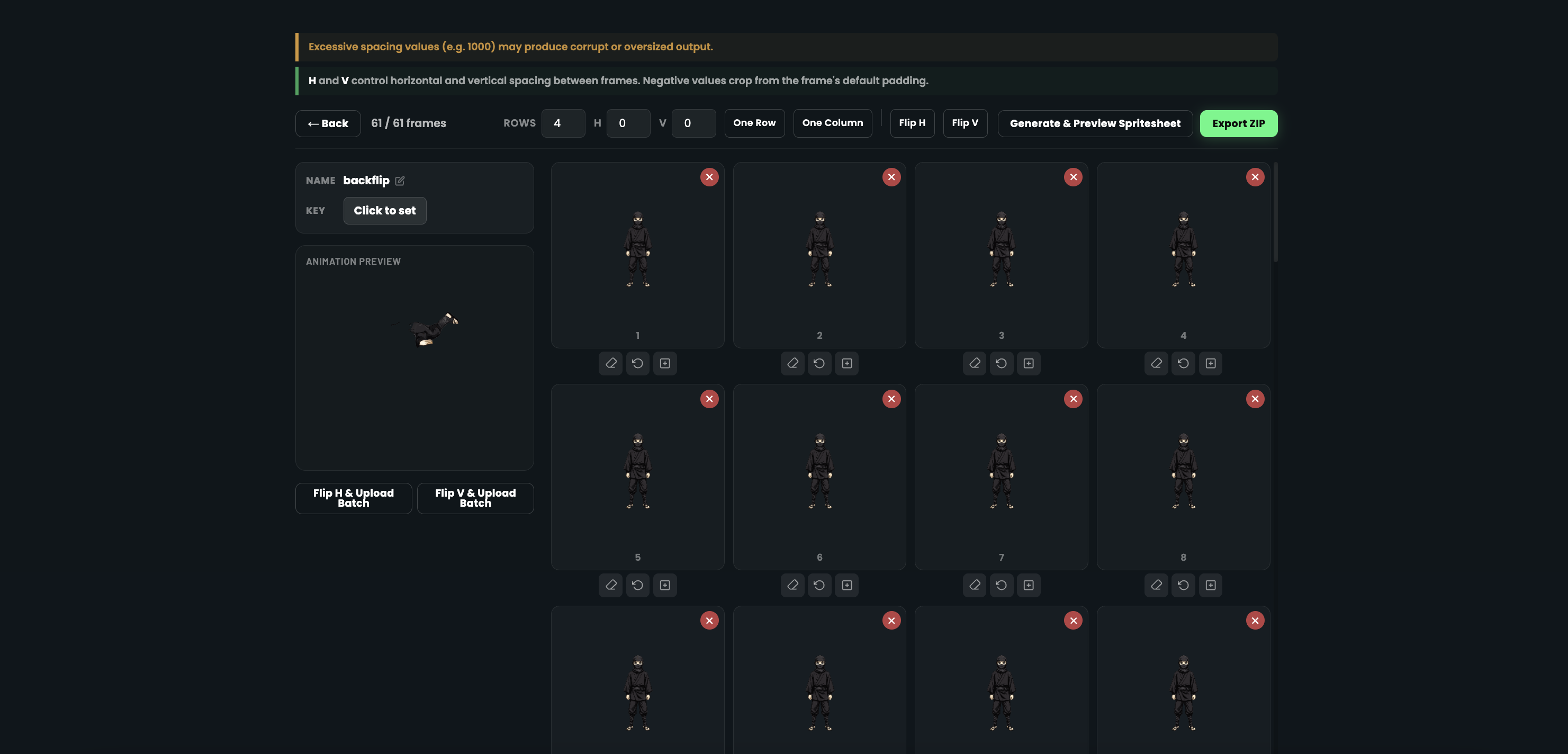
After generation, you can edit individual frames or flip the entire animation horizontally or vertically. This is useful for creating left-facing and right-facing versions of the same animation without regenerating.
The spritesheet editor gives you frame-level control — remove unwanted frames, regenerate specific frames from a new prompt, erase parts of a frame, or combine assets onto any frame.
Export Formats
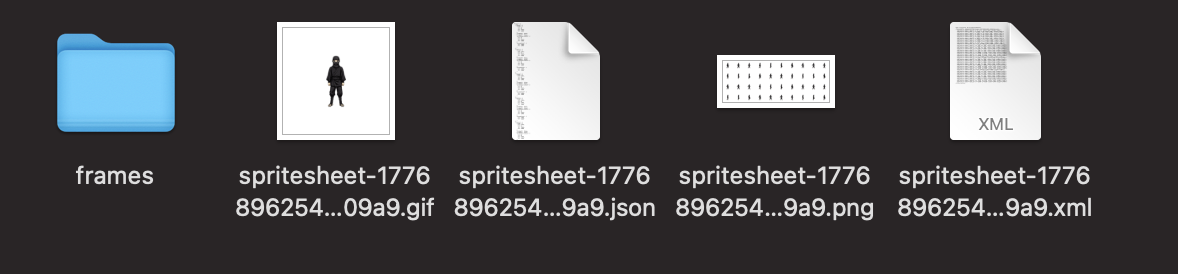
Export your finished animation in the format your game engine needs. Spritesheets.ai supports multiple export options: individual frame images as a folder, animated GIF for previews, a single spritesheet PNG for direct engine import, and JSON or XML atlas files for precise frame coordinates.
Every export format is production-ready and optimised for popular engines like Unity, Godot, GameMaker, and Buildbox.